Tag: technology

  • Deep Dive into Apple’s Secure Enclave

    Deep Dive into Apple’s Secure Enclave

    Introduction

    Apple’s Secure Enclave is a critical component of its security architecture, designed to provide an isolated environment for sensitive operations such as cryptographic key management, biometric authentication, and secure device encryption. Introduced with the A7 chip in 2013, Secure Enclave has evolved significantly, becoming a fundamental pillar of Apple’s security framework.

    This deep dive explores the architecture, functionality, and security mechanisms of Secure Enclave, demonstrating its role in protecting user data across Apple devices.

    Secure Enclave Architecture

    Secure Enclave is a dedicated coprocessor embedded within Apple’s system-on-chip (SoC). It is physically isolated from the main processor (CPU) and runs a separate, minimalistic operating system called the Secure Enclave OS. The key characteristics of its architecture include:

    • Dedicated Hardware Isolation: Secure Enclave has its own processor, memory, and cryptographic engine, ensuring that sensitive operations remain independent of the main CPU.
    • Secure Boot: Secure Enclave runs a secure boot process, ensuring only Apple-signed firmware is executed.
    • Encrypted Memory: All Secure Enclave memory is encrypted, making it resistant to external probing and tampering.
    • Limited Communication: The Secure Enclave communicates with the main processor via a mailbox-like mechanism, reducing the attack surface.

    Key Functions of Secure Enclave

    Secure Enclave plays a crucial role in multiple Apple security features:

    1. Biometric Authentication (Face ID & Touch ID)

    Secure Enclave handles the processing and storage of biometric data for Face ID and Touch ID. It ensures that:

    • Biometric templates are securely stored and never leave the device.
    • Authentication decisions are made within Secure Enclave without exposing raw biometric data to iOS or macOS.
    • Secure authentication enables access control to system functions and third-party applications.

    2. Cryptographic Key Management

    Secure Enclave generates and manages encryption keys for various security-sensitive operations:

    • File and Data Protection: It protects user data by storing encryption keys securely.
    • Apple Pay & Secure Transactions: Secure Enclave manages cryptographic operations for Apple Pay, ensuring transaction integrity and privacy.
    • iCloud Keychain & Password AutoFill: Secure Enclave safeguards encryption keys for iCloud Keychain, securing stored passwords and autofill credentials.

    3. Device Encryption and Security

    • Secure Enclave is instrumental in protecting the device encryption process by managing the UID (Unique ID) key, which is used to encrypt data stored on the device.
    • The UID key is fused into the chip at manufacturing and cannot be extracted, preventing brute-force attacks even if an attacker gains physical access.

    4. Attestation & Secure Boot Chain

    • Secure Enclave enforces device integrity checks and helps in verifying secure boot processes.
    • It supports cryptographic attestation to ensure that firmware and applications interacting with it are trusted.

    Security Enhancements Over Time

    Secure Enclave has undergone continuous enhancements since its inception:

    • A7 to A11: Introduced foundational security mechanisms such as hardware-based key storage and biometric authentication.
    • A12 & Later: Added enhanced memory protection, performance improvements, and a dedicated secure enclave coprocessor for cryptographic operations.
    • M-series Chips (Macs & iPads): Extended Secure Enclave’s capabilities to Apple Silicon Macs, integrating enhanced hardware-level security features.

    Attack Surface and Resistance to Exploits

    Despite being a highly secure component, Secure Enclave has been targeted by security researchers and attackers. However, its design makes it resilient to many classes of attacks:

    • Side-Channel Attacks: Secure Enclave is designed to minimize exposure to side-channel attacks by using hardware encryption and limited external interaction.
    • Physical Extraction Attacks: Even with direct hardware access, encryption keys remain protected due to the UID key’s non-exportable nature.
    • Exploits & Patches: While vulnerabilities have occasionally been discovered (e.g., checkm8 exploit affecting some devices), Apple continuously issues firmware updates to mitigate security threats.

    Apple’s Secure Enclave is a cornerstone of device security, providing robust protection for biometric authentication, cryptographic key management, and encrypted data storage. Its dedicated hardware isolation, secure boot process, and memory encryption make it one of the most advanced security architectures in consumer devices today. While not impervious to attacks, Secure Enclave’s design significantly reduces the risk of compromise, ensuring a high level of security for Apple users worldwide.

    As Apple continues to refine Secure Enclave, it remains a critical component in the company’s broader security and privacy strategy, reinforcing the trust users place in Apple devices.

  • VeraCrypt vs. Aegis Security Keys

    VeraCrypt vs. Aegis Security Keys

    When it comes to securing sensitive data, two popular tools stand out: VeraCrypt and Aegis security keys. While VeraCrypt focuses on encryption software, Aegis security keys provide a hardware-based security solution. Each has its strengths and weaknesses, making them suitable for different use cases. Let’s compare their pros and cons to help you decide which is best for your security needs.

    VeraCrypt: Software-Based Encryption

    VeraCrypt is an open-source encryption tool used to encrypt entire drives, partitions, or create encrypted containers.

    Pros of VeraCrypt

    1. Free and Open-Source – VeraCrypt is completely free, with its source code available for review, making it more trustworthy.
    2. Strong Encryption Algorithms – Supports AES, Twofish, and Serpent encryption, ensuring robust data protection.
    3. Hidden Volumes – Allows the creation of a hidden encrypted partition, offering plausible deniability.
    4. Cross-Platform Support – Works on Windows, macOS, and Linux, making it versatile.
    5. No Dependence on Hardware – Can be used on any device without additional hardware requirements.

    Cons of VeraCrypt

    1. Manual Key Management – Users must securely store and manage passwords or keyfiles, which can be cumbersome.
    2. Performance Impact – Encrypting entire drives or large files can slow down system performance.
    3. Potentially Complex for Beginners – Setting up encrypted volumes and managing keys may be challenging for non-technical users.
    4. No Native Two-Factor Authentication (2FA) – Lacks built-in 2FA, making it weaker against certain attack vectors.

    Aegis Security Keys: Hardware-Based Security

    Aegis security keys are USB-based hardware authentication devices used for passwordless logins, multi-factor authentication, and data encryption.

    Pros of Aegis Security Keys

    1. Hardware-Based Protection – Stores authentication secrets in a secure, tamper-resistant hardware module, reducing exposure to software-based attacks.
    2. Strong Authentication – Supports FIDO2, U2F, and other authentication protocols for secure logins.
    3. Plug-and-Play Simplicity – Easy to use, requiring minimal setup and no software installation in most cases.
    4. Prevents Phishing Attacks – Since authentication happens locally, credentials cannot be stolen via phishing.
    5. Multi-Platform Compatibility – Works with Windows, macOS, Linux, and mobile devices.

    Cons of Aegis Security Keys

    1. Cost – Unlike VeraCrypt, Aegis keys require a financial investment.
    2. Physical Security Risks – Losing the key can lock users out of accounts if no backup authentication method is set up.
    3. Limited to Authentication – While excellent for securing logins, it does not encrypt files or provide full-disk encryption like VeraCrypt.
    4. Compatibility Issues – Some platforms or older systems may not fully support hardware-based security keys.

    Which One Should You Choose?

    • For Encrypting Data: VeraCrypt is the better option, offering powerful file, volume, and disk encryption.
    • For Secure Authentication: Aegis security keys are superior for login security and protecting online accounts.
    • For Maximum Security: Using both is ideal—VeraCrypt for encryption and Aegis keys for strong authentication.

    Both solutions provide excellent security, but they serve different purposes. If your priority is data encryption, go with VeraCrypt. If you need strong authentication and phishing-resistant logins, Aegis security keys are the way to go.

  • The “Three Dumb Routers” Concept: A Practical Approach to Home and Small Office Networking

    The “Three Dumb Routers” Concept: A Practical Approach to Home and Small Office Networking

    When setting up a home or small office network, people often rely on a single all-in-one router that handles everything: routing, firewall, Wi-Fi, and sometimes even VPN services. While convenient, this setup can become a bottleneck in terms of security, performance, and flexibility. Enter the “Three Dumb Routers” approach—a simple yet effective method to optimize network segmentation, reliability, and security without the need for enterprise-level equipment.

    What Is the “Three Dumb Routers” Setup?

    The “Three Dumb Routers” concept is a practical networking approach where three separate consumer-grade routers (or access points) are used to segment a network into distinct zones. Unlike a single-router setup, this method improves network isolation and management. The three routers typically serve the following roles:

    1. Primary Router (Gateway):
      • Connects to the ISP modem and acts as the primary internet gateway.
      • Handles basic firewall functions, NAT, and DHCP for the main network.
    2. IoT/Guest Router:
      • Isolates IoT devices, smart home gadgets, or guest devices from the main network.
      • Protects sensitive devices by preventing insecure IoT devices from accessing private resources.
    3. Work/VPN Router:
      • Dedicated for work-from-home setups, business-related devices, or VPN traffic.
      • Ensures security and stability for sensitive devices by separating them from less secure parts of the network.

    Benefits of Using Three Dumb Routers

    1. Improved Security

    IoT devices are notorious for weak security, making them easy targets for cyberattacks. By isolating them on a separate router, attackers have a harder time reaching critical systems like personal computers or file servers.

    2. Network Segmentation

    Different types of devices have different networking needs. By splitting them into separate subnets, each group can operate independently without interfering with the others. For example, streaming devices and security cameras won’t congest the same network used for work or gaming.

    3. Better Performance

    If a single router is handling all network traffic, performance can degrade due to congestion. With three routers, traffic loads are distributed more efficiently, reducing interference and improving bandwidth availability.

    4. Simplified Firewall Rules

    Instead of complex VLAN tagging or intricate firewall rules, physical separation via multiple routers simplifies network administration while still offering strong security.

    Setting Up Three Dumb Routers

    1. Choose the Right Routers: Use basic consumer-grade routers with AP mode, VLAN, or guest network capabilities. Synology, Ubiquiti, or even repurposed OpenWrt devices are good choices.
    2. Configure the Primary Router:
      • Set up the WAN connection to the ISP.
      • Configure DHCP and basic firewall settings.
    3. Set Up the IoT/Guest Router:
      • Connect it to the primary router’s LAN port.
      • Disable DHCP and set up a static IP outside the main DHCP range.
      • Use a different SSID for IoT devices.
    4. Set Up the Work/VPN Router:
      • Connect it to the primary router’s LAN port.
      • Enable VPN (such as WireGuard or OpenVPN) if needed.
      • Ensure work-related devices use this router exclusively.

    The “Three Dumb Routers” method is a simple yet powerful way to enhance network security, improve performance, and streamline management. Whether for home or small office use, this approach provides a cost-effective alternative to enterprise-grade network segmentation, offering peace of mind without requiring advanced networking expertise.

    Have you tried a multi-router setup before? Let me know your thoughts in the comments!

  • A Deep Dive into Using a Netgate for Your Home Network

    A Deep Dive into Using a Netgate for Your Home Network

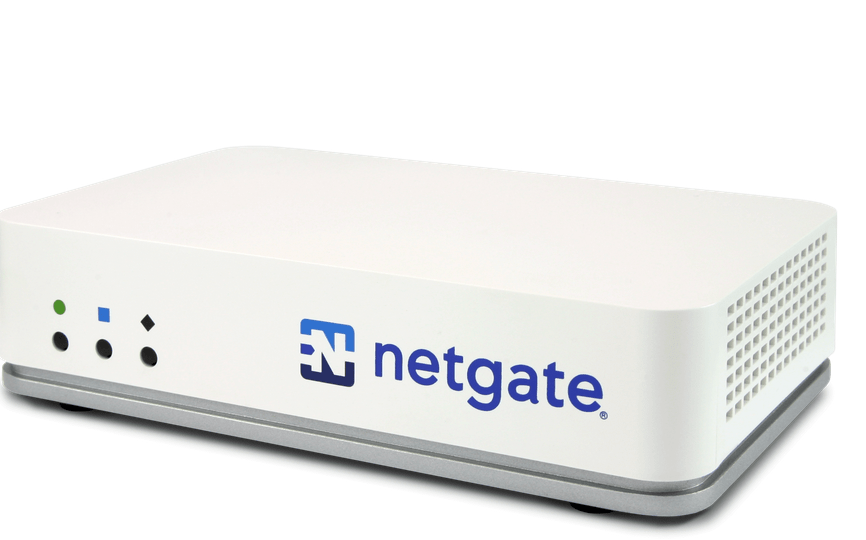
    Netgate, the company behind pfSense, is renowned for providing powerful, open-source firewall and router solutions. For many home users, integrating a Netgate appliance into their home network is an ideal way to achieve enterprise-grade security and flexibility. This article takes a deep dive into what makes Netgate appliances suitable for home use, how to set them up, and the potential benefits they bring.


    Why Choose Netgate for Your Home Network?

    Netgate appliances stand out for several reasons:

    1. pfSense Software: At the heart of every Netgate appliance is pfSense, a free and open-source firewall/router software that offers a wide array of features such as VPN, traffic shaping, IDS/IPS, and more.
    2. Enterprise-Grade Security: With built-in tools like firewall rules, intrusion detection/prevention (IDS/IPS), and advanced logging, Netgate appliances provide a high level of protection against external threats.
    3. Customizability: pfSense is highly customizable, allowing advanced users to tailor the network to their specific needs.
    4. Scalability: Whether you’re managing a small apartment or a large home with multiple IoT devices, Netgate appliances can handle various network sizes efficiently.
    5. Cost-Effectiveness: While the initial investment may seem high, the long-term benefits and lack of subscription fees make Netgate appliances an excellent value.

    Selecting the right Netgate Appliance

    Netgate offers several appliances tailored to different needs:

    • Netgate 1100: Ideal for small homes or apartments, offering affordability and compactness without compromising performance.
    • Netgate 2100: A step up in processing power, suitable for homes with moderate internet usage and multiple devices.
    • Netgate 4100/6100: Designed for power users, these appliances support high-speed connections, advanced features, and larger device counts.

    When choosing, consider the following:

    • Internet Speed: Ensure the appliance can handle your ISP’s speeds.
    • Device Count: More devices typically require a more robust appliance.
    • Advanced Features: If you’ll be using VPNs, VLANs, or IDS/IPS extensively, opt for a higher-end model.

    Setting Up Your Netgate Appliance

    1. Unboxing and Initial Setup

    • Connect the WAN port to your modem and the LAN port to a switch or directly to your computer.
    • Access the pfSense web interface by navigating to 192.168.1.1 in your browser. The default login credentials are admin/pfsense.

    2. Initial Configuration

    • Run the Setup Wizard: Follow the step-by-step setup wizard to configure basic settings like hostname, DNS servers, and WAN/LAN interfaces.
    • Change Default Passwords: Update both the admin and console passwords immediately to secure the device.

    3. Network Configuration

    • LAN Setup: Configure your LAN with a subnet that suits your needs (e.g., 192.168.10.0/24).
    • DHCP Server: Enable and customize the DHCP server for dynamic IP assignment.
    • Port Forwarding: Set up port forwarding rules for services like gaming or hosting a server.

    4. Enabling Advanced Features

    • Firewall Rules: Create rules to allow or block specific traffic.
    • VPN Setup: Configure OpenVPN or WireGuard for secure remote access.
    • IDS/IPS: Enable Suricata or Snort to monitor and prevent intrusions.
    • VLANs: Segment your network for better organization and security (e.g., separating IoT devices from personal devices).

    Benefits of Using Netgate at Home

    1. Enhanced Security: Protect your network from external threats with a robust firewall, intrusion detection/prevention, and advanced monitoring tools.
    2. Privacy: Easily configure a VPN to encrypt your internet traffic, ensuring privacy from your ISP and other third parties.
    3. Traffic Optimization: Use Quality of Service (QoS) and traffic shaping to prioritize critical activities like video calls or gaming.
    4. IoT Segmentation: Separate IoT devices from your main network to prevent potential vulnerabilities.
    5. Advanced Logging and Monitoring: Gain full visibility into network traffic and events for troubleshooting or analysis.

    Challenges and Considerations

    While Netgate appliances are powerful, they come with a learning curve. Here are a few challenges:

    • Complexity: pfSense is feature-rich, which can be overwhelming for beginners.
    • Cost: Initial investment is higher compared to consumer-grade routers.
    • Maintenance: Regular updates and monitoring are required to keep the system secure and efficient.

    For those new to Netgate or pfSense, there are abundant resources, including official documentation, forums, and video tutorials, to help you get started.


    Integrating a Netgate appliance into your home network is an investment in security, privacy, and performance. While there’s a learning curve, the customization and control offered by pfSense make it well worth the effort for those seeking a robust and reliable networking solution. Whether you’re a tech enthusiast, a work-from-home professional, or someone with a smart home full of IoT devices, Netgate can elevate your home networking experience.

  • Understanding VPNs: The Good, The Bad, and Why Mullvad VPN Stands Out

    Understanding VPNs: The Good, The Bad, and Why Mullvad VPN Stands Out

    Introduction to VPNs

    In today’s hyperconnected world, privacy and security are becoming increasingly critical. A Virtual Private Network (VPN) is one of the most popular tools for protecting your online activity. By encrypting your internet traffic and routing it through secure servers, a VPN keeps your browsing private, helps bypass geographic restrictions, and shields you from hackers on public Wi-Fi.

    But not all VPNs are created equal. In this post, we’ll explore the differences between good and bad VPNs, how to identify a trustworthy provider, and why Mullvad VPN is an excellent choice for those serious about privacy.


    The Good and Bad of VPNs

    Good VPNs

    A good VPN provider prioritizes user privacy and security. Some hallmarks of a trustworthy VPN include:

    1. No Logs Policy:
      A good VPN doesn’t keep logs of your online activities, ensuring there’s no data to hand over in case of legal requests.
    2. Strong Encryption:
      VPNs should use modern encryption standards like AES-256 to ensure your data remains secure.
    3. Independent Audits:
      Transparent providers allow third-party audits of their service to prove they’re upholding their promises.
    4. No Tracking:
      Good VPNs avoid tracking or collecting user data, focusing purely on delivering privacy and security.
    5. Robust Features:
      • A wide network of servers in various locations.
      • Support for OpenVPN, WireGuard, or other secure protocols.
      • Kill switches to prevent data leaks if the VPN disconnects.
      • DNS and IPv6 leak protection.

    Bad VPNs

    Some VPNs do more harm than good. Here’s what to watch out for:

    1. Logs and Data Collection:
      Many free or poorly designed VPNs log your activity, including your IP address, websites visited, and connection timestamps. These logs can be sold to advertisers or handed over to authorities.
    2. Ads and Malware:
      Free VPNs often inject ads or, worse, malware into your browsing experience. They may even use your bandwidth for shady purposes.
    3. Slow Speeds:
      Bad VPNs have poor infrastructure, resulting in slow connections and unreliable performance.
    4. Lack of Transparency:
      If a VPN provider hides its ownership or avoids publishing its privacy policy, it’s a red flag.
    5. Limited or Unsecure Protocols:
      VPNs that lack support for secure protocols like WireGuard or use outdated methods (e.g., PPTP) put your data at risk.

    Mullvad VPN: Privacy Without Compromise

    When it comes to VPNs, Mullvad VPN is a standout provider that has earned a reputation for its unwavering commitment to privacy and security.

    Why Choose Mullvad VPN?

    1. Truly No-Logs Policy:
      Mullvad takes privacy seriously. They don’t log your online activity, IP address, or any identifying information. In fact, you don’t even need an email address to create an account! Mullvad assigns you an anonymous account number for authentication.
    2. Transparent Ownership:
      Mullvad is operated by Amagicom AB, a Swedish company, and they’ve been upfront about their ownership and business practices.
    3. Strong Encryption:
      Mullvad supports WireGuard, a cutting-edge VPN protocol known for its speed and robust security. Your data is encrypted using state-of-the-art standards.
    4. Independent Audits:
      Mullvad has undergone independent security audits, demonstrating their commitment to transparency and trustworthiness.
    5. Anonymous Payment Options:
      Mullvad lets you pay anonymously using cash, cryptocurrency, or traditional payment methods like PayPal and credit cards.
    6. Flat Pricing:
      Unlike many VPNs with tiered pricing or long-term contracts, Mullvad has a straightforward, no-nonsense flat rate (€5 per month).
    7. No Bandwidth Throttling:
      Mullvad ensures fast, reliable connections without throttling, making it suitable for streaming, gaming, and torrenting.
    8. Privacy by Default:
      Mullvad blocks trackers and ads at the DNS level, providing an additional layer of privacy.

    What Sets Mullvad Apart?

    Mullvad’s refusal to collect any unnecessary data is unparalleled. Their commitment to privacy goes beyond marketing, making them a trusted choice for privacy advocates, journalists, and anyone looking to escape surveillance.


    How to Choose a VPN

    When evaluating VPNs, ask yourself the following questions:

    1. Does the VPN log your data?
      Look for a clear no-logs policy backed by audits.
    2. What encryption standards does it use?
      Ensure the VPN supports modern protocols like WireGuard or OpenVPN.
    3. Is the service transparent and reputable?
      Research the company behind the VPN and look for reviews from trusted sources.
    4. What’s their track record?
      Has the VPN ever suffered data breaches or been caught lying about its practices?
    5. What’s the pricing model?
      Avoid free VPNs, as they often rely on ads or data collection.

    Final thoughts

    VPNs are essential tools for protecting your online privacy, but it’s crucial to choose wisely. While bad VPNs can compromise your security and track your activity, good VPNs like Mullvad VPN offer transparency, strong encryption, and a true commitment to privacy.

    With Mullvad’s simple pricing, no-logs policy, and robust features, it’s a great choice for anyone seeking a reliable VPN solution. Whether you’re bypassing geographic restrictions, blocking trackers, or protecting your data on public Wi-Fi, Mullvad has you covered.

  • How to Set Up Your Own Pi-hole: A Comprehensive Guide

    How to Set Up Your Own Pi-hole: A Comprehensive Guide

    Introduction to Pi-hole

    Pi-hole is a powerful, open-source network-wide ad blocker that acts as a DNS (Domain Name System) sinkhole, blocking advertisements, trackers, and malicious domains across your entire network. It’s lightweight, efficient, and incredibly useful for anyone who wants to improve internet speed and security while reducing the annoyance of intrusive ads.

    In this blog post, we’ll walk you through the entire process of setting up Pi-hole, the pros and cons of using it, and how to configure your devices to use it for a cleaner, faster internet experience.


    Why You Should Use Pi-hole

    Pros of Pi-hole:

    1. Ad Blocking Across Your Network: Pi-hole blocks all ads, trackers, and other unwanted content on every device connected to your network. Whether it’s your smartphone, tablet, smart TV, or laptop, Pi-hole works across all devices without requiring additional software.
    2. Improved Internet Speed: By blocking ads at the DNS level, Pi-hole reduces the amount of unnecessary data your devices have to download. This results in faster loading times for websites and apps, especially on mobile devices.
    3. Enhanced Privacy: Pi-hole helps protect your privacy by blocking tracking scripts and other malicious content that advertisers often use to track your online behavior.
    4. Easy to Set Up: Pi-hole is relatively easy to install and configure, especially on a Raspberry Pi, but it can also be run on Linux or even Docker on other hardware.
    5. Free and Open Source: Pi-hole is completely free, and its open-source nature means that it’s constantly updated and improved by the community.

    Cons of Pi-hole:

    1. Doesn’t Block All Ads: While Pi-hole blocks a large number of ads, it’s not perfect. Some ads may still slip through, especially if they use non-standard methods for serving content. However, Pi-hole has community-driven lists to constantly improve blocking.
    2. Requires Maintenance: You may need to occasionally update Pi-hole’s blocklists or troubleshoot certain configurations, especially if a new device or service bypasses the blocker.
    3. Compatibility Issues with Some Services: Some websites or apps may not work properly when Pi-hole blocks certain resources, such as login screens or video streaming services. You may have to whitelist specific domains to get them working.
    4. Requires a Dedicated Device: Although Pi-hole can run on low-powered devices like a Raspberry Pi, it still requires a device that’s always on in your network. If the device goes offline, your ad blocking will cease functioning.

    How to Set Up Pi-hole

    Prerequisites:

    • A Raspberry Pi (Pi 3/4 is recommended for best performance, but even a Pi Zero W can suffice)
    • A microSD card (at least 8 GB)
    • An internet connection
    • A computer to perform the setup (with SSH access to the Pi)
    • Basic knowledge of using terminal commands

    Step-by-Step Pi-hole Installation

    1. Prepare Your Raspberry Pi:
      • Flash your Raspberry Pi’s SD card with Raspberry Pi OS using the Raspberry Pi Imager.
      • Once flashed, boot up your Raspberry Pi and connect it to the internet either via Wi-Fi or Ethernet.
    2. Update Your Raspberry Pi:
      • Open a terminal window and update the system: sudo apt update && sudo apt upgrade -y
    3. Install Pi-hole:
      • Pi-hole’s installation script simplifies the setup process. Run the following command to start the installation: curl -sSL https://install.pi-hole.net | bash
    4. Follow the Installation Wizard:
      • The Pi-hole installer will guide you through the process. You’ll be asked to:
        • Choose your network interface (Ethernet or Wi-Fi).
        • Select a DNS provider (Google, OpenDNS, or others).
        • Choose an upstream DNS server (for resolving requests Pi-hole cannot block).
        • Set an admin password (for Pi-hole’s web interface).
        • Enable or disable blocking of ads over IPv6 (recommended to enable for full protection).
    5. Access the Pi-hole Web Interface:
      • After installation, you can access Pi-hole’s web interface by navigating to your Raspberry Pi’s IP address in your browser, followed by /admin (e.g., http://192.168.1.100/admin).
      • Log in with the admin password you set up during installation.

    How to Configure Devices to Use Pi-hole

    After Pi-hole is installed and running, it’s time to configure your network devices to route their DNS requests through Pi-hole.

    Option 1: Set Pi-hole as Your Router’s DNS Server

    The easiest way to ensure all devices on your network use Pi-hole is by changing your router’s DNS settings. This way, Pi-hole will act as the default DNS server for all connected devices.

    1. Log in to Your Router:
      • Open a web browser and navigate to your router’s IP address (usually something like 192.168.1.1 or 192.168.0.1).
      • Enter your username and password to log in to the router’s admin interface.
    2. Find DNS Settings:
      • Look for the DNS configuration section. This is typically found under the Network, LAN, or Advanced settings.
    3. Set Pi-hole as the DNS Server:
      • Enter your Raspberry Pi’s IP address as the primary DNS server.
      • You can leave the secondary DNS server blank, or enter a fallback DNS provider (e.g., Google DNS 8.8.8.8).
    4. Save and Reboot:
      • Save the settings and reboot your router. All devices connected to your network should now use Pi-hole for DNS.

    Option 2: Manually Set DNS on Individual Devices

    If you don’t want to modify your router settings or prefer to configure devices individually, you can manually set Pi-hole’s IP address as the DNS server on each device.

    1. For Windows:
      • Open Control Panel and go to Network and Sharing Center.
      • Click on your active connection, then go to Properties.
      • Select Internet Protocol Version 4 (TCP/IPv4) and click Properties.
      • Set the Preferred DNS server to your Raspberry Pi’s IP address and click OK.
    2. For macOS:
      • Open System Preferences > Network.
      • Select your network connection and click Advanced.
      • Go to the DNS tab, then add your Raspberry Pi’s IP address under the DNS Servers list.
    3. For Android and iOS:
      • Go to your device’s Wi-Fi settings and select your network.
      • For Android, tap Advanced and then set the DNS server to your Pi’s IP address.
      • On iOS, tap Configure DNS and select Manual, then add your Pi-hole IP.

    Managing and Monitoring Pi-hole

    Once Pi-hole is set up, you can manage and monitor it from the web interface:

    • Blocklists: Pi-hole uses a set of predefined blocklists, but you can add more to improve blocking capabilities.
    • Logs: Pi-hole tracks all DNS requests, and you can monitor which domains are being queried in real-time.
    • Whitelist/Blacklist: You can manually add domains to a whitelist or blacklist, depending on whether you want to block or allow specific domains.

    Setting up Pi-hole is a great way to improve your network’s privacy and performance while reducing the annoyance of ads. By following this guide, you should be able to install and configure Pi-hole on your Raspberry Pi and set up your devices to use it as the DNS server. With its easy setup and minimal maintenance, Pi-hole is an excellent tool for anyone looking to have more control over their online experience.

    If you encounter any issues or need more advanced configurations, feel free to explore Pi-hole’s extensive documentation or ask for help in their community forums.

    Happy almost ad-free browsing!

  • Malicious Tampering of 3D Medical Imagery Using Deep Learning

    Malicious Tampering of 3D Medical Imagery Using Deep Learning

    Source: Mirsky, Y., Mahler, T., Shelef, I., & Elovici, Y. (2019). CT-GAN: Malicious Tampering of 3D Medical Imagery using Deep Learning. In 28th USENIX Security Symposium (USENIX Security 2019).

    Main Themes:

    • Vulnerability of Medical Imaging Systems: The research highlights the concerning vulnerability of Picture Archiving and Communication Systems (PACS) and medical imaging devices to cyber attacks. These vulnerabilities, coupled with the reliance on 3D medical scans for diagnosis and treatment, create a serious threat to patient safety and healthcare integrity.
    • Deep Learning Enabled Attack: The authors present CT-GAN, a framework utilizing Conditional Generative Adversarial Networks (cGANs) to manipulate 3D medical imagery, specifically by adding or removing evidence of medical conditions like lung cancer in CT scans. This represents a novel and potent attack vector exploiting the advancements in deep learning.
    • Effectiveness and Implications: CT-GAN demonstrates remarkable effectiveness in deceiving expert radiologists and state-of-the-art AI cancer screening tools, highlighting the significant potential for misdiagnosis and manipulation. This raises profound ethical and security concerns within the healthcare domain.

    Most Important Ideas/Facts:

    1. PACS Security Gaps:
    • Healthcare systems lag behind in security standards, focusing primarily on data privacy over data integrity and availability.
    • Exposed PACS: “A quick search on Shodan.io reveals 1,849 medical image (DICOM) servers and 842 PACS servers exposed to the Internet.”
    • Vulnerable to various attacks: Social engineering, physical access, insider threats, and exploitation of software vulnerabilities.
    1. CT-GAN Attack Framework:
    • Leverages two cGANs: One for injecting and one for removing medical conditions (e.g., lung cancer) from 3D CT scans.
    • Employs in-painting techniques for realistic modification: “To make the process efficient and the output anatomically realistic, we perform the following steps: (1) locate where the evidence should be inject/removed, (2) cut out a rectangular cuboid from the location, (3) interpolate (scale) the cuboid, (4) modify the cuboid with the cGAN, (5) rescale, and (6) paste it back into the original scan.”
    • Automated process: Facilitates deployment within air-gapped systems and real-time manipulation via infected DICOM viewers.
    1. Attack Effectiveness:
    • Deceives radiologists: “The radiologists diagnosed 99% of the injected patients with malign cancer, and 94% of cancer removed patients as being healthy.” Even with awareness of the attack, misdiagnosis rates remained high.
    • Fools AI: State-of-the-art lung cancer screening model misdiagnosed 100% of tampered scans.
    • Implications beyond immediate treatment: Psychological impact on patients, disruption of research, insurance fraud, and potential for political manipulation.
    1. Attack Vectors:
    • Remote Infiltration: Exploiting vulnerabilities in internet-facing elements, social engineering attacks (phishing, spear phishing).
    • Local Infiltration: Physical access with false pretexts, insider threats, hacking Wi-Fi access points.
    • Pen-test demonstration: Successful man-in-the-middle attack on a hospital’s CT scanner highlights real-world feasibility.
    1. Countermeasures:
    • Data Security: Enabling encryption for data-in-motion, robust access control, and up-to-date security measures for PACS and connected devices.
    • Digital Signatures: Utilizing DICOM’s digital signature feature for verifying scan integrity.
    • Digital Watermarking: Embedding hidden signals to detect tampering.
    • Machine Learning Detection: Employing supervised and unsupervised methods to identify anomalies or inconsistencies within scans.

    Key Takeaways:

    • The research exposes a critical cybersecurity threat within the healthcare domain, demonstrating the potential for deep learning to be weaponized against medical imaging systems.
    • CT-GAN highlights the need for enhanced security measures and awareness within healthcare organizations to protect the integrity of medical diagnoses and patient safety.
    • Further research is required to develop robust countermeasures against AI-powered attacks targeting medical imagery.

    Quotes:

    • On PACS vulnerability: “The security of health-care systems has been lagging behind modern standards… This is partially because health-care security policies mostly address data privacy (access-control) but not data security (availability/integrity).”
    • On CT-GAN capabilities: “By dealing with a small portion of the scan, the problem complexity is reduced by focusing the GAN on the relevant area of the body… This results in fast execution and high anatomical realism.”
    • On attack effectiveness: “This attack is a concern because infiltration of healthcare networks has become common, and internal network security is often poor. Moreover, for injection, the attacker is still likely to succeed even if medical treatment is not performed.”
  • Analyzing the Current Landscape of NAS for Home Use: A Cybersecurity Perspective

    Analyzing the Current Landscape of NAS for Home Use: A Cybersecurity Perspective

    Network-Attached Storage (NAS) devices have become an integral part of modern households. They offer centralized storage, media streaming, and even remote access, making them a favorite for tech enthusiasts and families alike. However, as with any internet-connected device, NAS devices are not immune to cybersecurity threats. This post analyzes the current NAS options for home use from a cybersecurity standpoint, helping you make an informed choice.

    Key Cybersecurity Criteria for Evaluating NAS Devices

    1. Operating System Security: A secure operating system is fundamental to a NAS device. Regular updates, patch management, and a hardened kernel are critical.
    2. Access Controls: Robust user authentication and permission systems help restrict unauthorized access.
    3. Remote Access Security: Features like end-to-end encryption, VPN support, and two-factor authentication (2FA) are vital for safe remote access.
    4. Data Encryption: Encryption, both at rest and in transit, ensures data confidentiality even if the device is compromised.
    5. Network Security: Integration with firewall rules, support for intrusion detection/prevention systems (IDS/IPS), and strong default settings.
    6. Incident Response: The ability to detect, log, and alert users of suspicious activities.

    Top NAS Brands and Their Cybersecurity Features

    1. Synology
      • Strengths: Synology DSM (DiskStation Manager) is frequently updated with security patches. Built-in 2FA, comprehensive user permission controls, and integrated VPN server support make it a strong contender.
      • Weaknesses: While the interface is user-friendly, advanced configurations might require expertise to fully harden against threats.
    2. QNAP
      • Strengths: QNAP’s QTS system offers AES-256 encryption, SSL certificate management, and IP whitelisting/blacklisting. Frequent firmware updates address vulnerabilities promptly.
      • Weaknesses: QNAP devices have been targets for ransomware attacks, highlighting the importance of diligent patching and proper configuration.
    3. Western Digital (WD)
      • Strengths: My Cloud devices include basic security features like HTTPS support and password-protected access.
      • Weaknesses: Compared to Synology and QNAP, WD often lags in proactive updates and advanced security features, leaving them more vulnerable to attacks.
    4. Asustor
      • Strengths: Asustor ADM includes snapshot backup technology, strong encryption options, and frequent updates.
      • Weaknesses: While security features are robust, the interface can be less intuitive, potentially leading to misconfigurations.

    Best Practices for Securing Your NAS

    1. Update Regularly: Ensure your NAS firmware and apps are always up-to-date.
    2. Harden Remote Access: Disable remote access features if not needed. If used, rely on VPNs and enable 2FA.
    3. Strong Passwords: Use complex passwords and avoid default credentials.
    4. Backup Strategically: Use 3-2-1 backup principles (3 copies of data, 2 different media, 1 offsite copy).
    5. Monitor and Log Activities: Enable logging and set up alerts for suspicious activity.
    6. Isolate on the Network: Place your NAS on a dedicated VLAN or subnet to reduce exposure.

    The cybersecurity of NAS devices largely depends on the manufacturer’s diligence and the user’s awareness. Synology and QNAP stand out for their comprehensive feature sets and commitment to updates, but no device is entirely foolproof. By selecting a NAS with strong cybersecurity features and following best practices, you can ensure that your data remains safe and accessible.

  • Tracking and Privacy in Over-the-Top (OTT) Streaming Devices

    Tracking and Privacy in Over-the-Top (OTT) Streaming Devices

    Source: Watching You Watch: The Tracking Ecosystem of Over-the-Top TV Streaming Devices by Mohajeri Moghaddam et al. (CCS ‘19)

    Main Themes:

    • Pervasive Tracking in OTT Streaming Devices: The study reveals widespread tracking practices within Over-the-Top (OTT) streaming devices like Roku and Amazon Fire TV. Trackers collect and transmit user data, often without explicit consent or effective countermeasures.
    • Identifier and Information Leakage: OTT channels leak sensitive user information, including persistent identifiers like MAC addresses, serial numbers, and WiFi SSIDs, as well as video viewing preferences, to numerous tracking domains.
    • Ineffectiveness of Privacy Controls: Built-in privacy controls like “Limit Ad Tracking” (Roku) and “Disable Interest-based Ads” (Amazon) are largely ineffective in preventing data collection and transmission to tracking domains.
    • Security Vulnerabilities in Remote Control APIs: Vulnerabilities in local remote control APIs expose OTT devices to attacks by malicious web scripts, potentially allowing unauthorized access to device information and control over functionalities.

    Key Findings:

    • Prevalence of Trackers: Tracking domains were found in 69% of Roku channels and 89% of Amazon Fire TV channels studied. Google and Facebook tracking services are highly prevalent, mirroring similar findings on web and mobile platforms.
    • Top Trackers: The most prevalent trackers included doubleclick.net (Google) and google-analytics.com on Roku, and amazon-adsystem.com and crashlytics.com on Amazon Fire TV.
    • Leakage of Persistent Identifiers: A significant number of channels were found to leak persistent identifiers like AD IDs, MAC addresses, and serial numbers, undermining the effectiveness of resetting advertising IDs as a privacy measure. Quote: “Moreover, widespread collection of persistent device identifiers like MAC addresses and serial numbers disables one of the few defenses available to users: resetting their advertising IDs.”
    • Video Title Leakage: Tracking domains were observed receiving information about the titles of videos being watched, revealing user viewing habits. Quote: “We found 9 channels on Roku and 14 channels on the Fire TV … that leaked the title of the video to a tracking domain.”
    • Ineffective Privacy Settings: While “Limit Ad Tracking” on Roku eliminated AD ID leaks, it did not reduce the number of trackers contacted. Similarly, “Disable Interest-based Ads” on Amazon only reduced data collection by Amazon’s own advertising system. Quote: “Our data, however, reveals that even when the privacy option is enabled, there are a number of other identifiers that can be used to track users, bypassing the privacy protections built into these platforms”
    • DNS Rebinding Vulnerability (Roku): Roku’s External Control API was found to be vulnerable to DNS rebinding attacks, allowing malicious web scripts to collect sensitive data, install/uninstall channels, and even geolocate users.

    Recommendations:

    • Implement stronger privacy controls, akin to “Incognito Mode” in web browsers, to limit data collection and prevent cross-profile tracking.
    • Provide mechanisms for users to monitor their network traffic, enabling transparency and analysis of channel behavior.
    • Enhance security of local APIs to mitigate risks of unauthorized access and control.
    • Regulators should use the tools developed in this study to inspect channels and enforce privacy regulations in the OTT ecosystem.

    Conclusion:

    This research underscores the urgent need for improved privacy and security measures within the OTT streaming device ecosystem. Current practices expose users to extensive tracking and data leakage, often without their knowledge or consent. Stronger privacy controls, transparent data collection practices, and robust security measures are crucial to protect user privacy and build trust in these platforms.

  • Securing Your Home Router

    Securing Your Home Router

    In today’s hyper-connected world, your home router is the gateway to the digital realm. It connects all your devices to the internet, making it a critical piece of your home’s cybersecurity puzzle. Unfortunately, it’s often overlooked, leaving a door wide open for cyber threats. Below, I’ll explore some essential steps to secure your router and safeguard your home network.

    1. Use a Strong, Unique Password

    The default admin passwords that come with routers are easy targets for attackers. Changing your router’s admin credentials to a strong, unique password is your first line of defense. Consider using a mix of uppercase and lowercase letters, numbers, and special characters. Password managers can help generate and store secure passwords if needed.

    2. Disable Remote Management

    Remote management allows you to access your router from anywhere, but it also opens the door for attackers. Unless you absolutely need this feature (and most home users don’t), it’s best to disable it. This minimizes the attack surface of your network.

    3. Segregate IoT Devices

    The Internet of Things (IoT) has revolutionized our lives, but many IoT devices lack robust security measures. Segregate these devices by setting up a separate network for them. Many modern routers, like the Synology routers I use, allow you to create multiple SSIDs, ensuring your primary devices are shielded from potential IoT vulnerabilities.

    4. Avoid Universal Plug and Play (uPNP)

    While uPNP is convenient for gaming consoles and other devices to automatically configure port forwarding, it’s also a security risk. uPNP can allow malware to manipulate your router’s settings. Disabling this feature adds another layer of security to your network.

    5. Skip WPS (Wi-Fi Protected Setup)

    WPS was designed to simplify device connections, but it has known vulnerabilities that can be exploited by attackers. Disable WPS and stick to manually connecting devices to your network with a strong password.

    6. Keep Firmware Updated

    Router manufacturers regularly release firmware updates to patch security vulnerabilities and enhance functionality. Check for updates frequently or enable automatic updates if your router supports it. Staying updated ensures you’re protected against the latest threats.

    7. Use a Guest Network

    Instead of sharing your primary network password with visitors, set up a guest network. This keeps their devices isolated from your main devices and prevents accidental access to sensitive resources. Most routers make it easy to create and manage guest networks, adding convenience and security.

    Final Thoughts

    Your router is more than just a device that connects you to the internet—it’s the gatekeeper of your digital life. By taking proactive steps to secure it, you can significantly reduce your risk of cyber threats. Whether it’s changing passwords, disabling risky features, or updating firmware, every action contributes to a safer home network.

    Remember, the strength of your network’s security starts with you. Don’t wait until it’s too late—secure your router today and enjoy peace of mind in the digital age.