Tag: networking

  • The “Three Dumb Routers” Concept: A Practical Approach to Home and Small Office Networking

    The “Three Dumb Routers” Concept: A Practical Approach to Home and Small Office Networking

    When setting up a home or small office network, people often rely on a single all-in-one router that handles everything: routing, firewall, Wi-Fi, and sometimes even VPN services. While convenient, this setup can become a bottleneck in terms of security, performance, and flexibility. Enter the “Three Dumb Routers” approach—a simple yet effective method to optimize network segmentation, reliability, and security without the need for enterprise-level equipment.

    What Is the “Three Dumb Routers” Setup?

    The “Three Dumb Routers” concept is a practical networking approach where three separate consumer-grade routers (or access points) are used to segment a network into distinct zones. Unlike a single-router setup, this method improves network isolation and management. The three routers typically serve the following roles:

    1. Primary Router (Gateway):
      • Connects to the ISP modem and acts as the primary internet gateway.
      • Handles basic firewall functions, NAT, and DHCP for the main network.
    2. IoT/Guest Router:
      • Isolates IoT devices, smart home gadgets, or guest devices from the main network.
      • Protects sensitive devices by preventing insecure IoT devices from accessing private resources.
    3. Work/VPN Router:
      • Dedicated for work-from-home setups, business-related devices, or VPN traffic.
      • Ensures security and stability for sensitive devices by separating them from less secure parts of the network.

    Benefits of Using Three Dumb Routers

    1. Improved Security

    IoT devices are notorious for weak security, making them easy targets for cyberattacks. By isolating them on a separate router, attackers have a harder time reaching critical systems like personal computers or file servers.

    2. Network Segmentation

    Different types of devices have different networking needs. By splitting them into separate subnets, each group can operate independently without interfering with the others. For example, streaming devices and security cameras won’t congest the same network used for work or gaming.

    3. Better Performance

    If a single router is handling all network traffic, performance can degrade due to congestion. With three routers, traffic loads are distributed more efficiently, reducing interference and improving bandwidth availability.

    4. Simplified Firewall Rules

    Instead of complex VLAN tagging or intricate firewall rules, physical separation via multiple routers simplifies network administration while still offering strong security.

    Setting Up Three Dumb Routers

    1. Choose the Right Routers: Use basic consumer-grade routers with AP mode, VLAN, or guest network capabilities. Synology, Ubiquiti, or even repurposed OpenWrt devices are good choices.
    2. Configure the Primary Router:
      • Set up the WAN connection to the ISP.
      • Configure DHCP and basic firewall settings.
    3. Set Up the IoT/Guest Router:
      • Connect it to the primary router’s LAN port.
      • Disable DHCP and set up a static IP outside the main DHCP range.
      • Use a different SSID for IoT devices.
    4. Set Up the Work/VPN Router:
      • Connect it to the primary router’s LAN port.
      • Enable VPN (such as WireGuard or OpenVPN) if needed.
      • Ensure work-related devices use this router exclusively.

    The “Three Dumb Routers” method is a simple yet powerful way to enhance network security, improve performance, and streamline management. Whether for home or small office use, this approach provides a cost-effective alternative to enterprise-grade network segmentation, offering peace of mind without requiring advanced networking expertise.

    Have you tried a multi-router setup before? Let me know your thoughts in the comments!
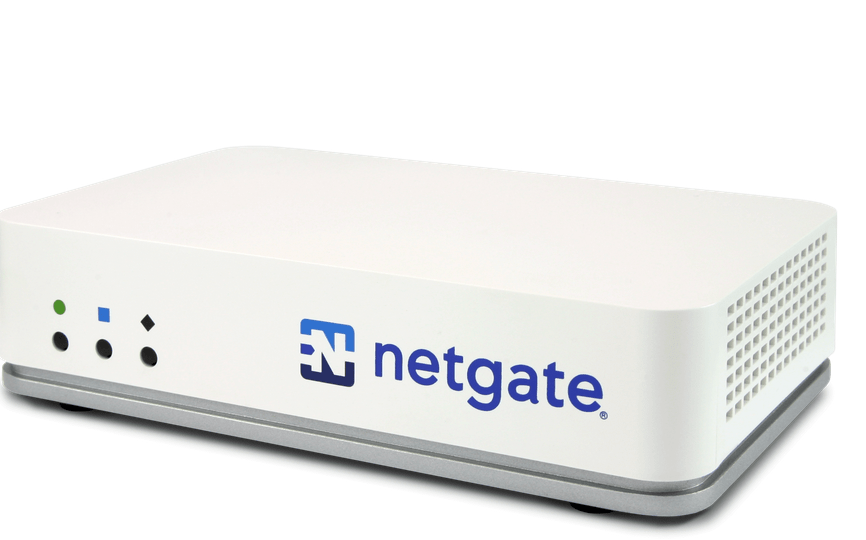
  • A Deep Dive into Using a Netgate for Your Home Network

    A Deep Dive into Using a Netgate for Your Home Network

    Netgate, the company behind pfSense, is renowned for providing powerful, open-source firewall and router solutions. For many home users, integrating a Netgate appliance into their home network is an ideal way to achieve enterprise-grade security and flexibility. This article takes a deep dive into what makes Netgate appliances suitable for home use, how to set them up, and the potential benefits they bring.


    Why Choose Netgate for Your Home Network?

    Netgate appliances stand out for several reasons:

    1. pfSense Software: At the heart of every Netgate appliance is pfSense, a free and open-source firewall/router software that offers a wide array of features such as VPN, traffic shaping, IDS/IPS, and more.
    2. Enterprise-Grade Security: With built-in tools like firewall rules, intrusion detection/prevention (IDS/IPS), and advanced logging, Netgate appliances provide a high level of protection against external threats.
    3. Customizability: pfSense is highly customizable, allowing advanced users to tailor the network to their specific needs.
    4. Scalability: Whether you’re managing a small apartment or a large home with multiple IoT devices, Netgate appliances can handle various network sizes efficiently.
    5. Cost-Effectiveness: While the initial investment may seem high, the long-term benefits and lack of subscription fees make Netgate appliances an excellent value.

    Selecting the right Netgate Appliance

    Netgate offers several appliances tailored to different needs:

    • Netgate 1100: Ideal for small homes or apartments, offering affordability and compactness without compromising performance.
    • Netgate 2100: A step up in processing power, suitable for homes with moderate internet usage and multiple devices.
    • Netgate 4100/6100: Designed for power users, these appliances support high-speed connections, advanced features, and larger device counts.

    When choosing, consider the following:

    • Internet Speed: Ensure the appliance can handle your ISP’s speeds.
    • Device Count: More devices typically require a more robust appliance.
    • Advanced Features: If you’ll be using VPNs, VLANs, or IDS/IPS extensively, opt for a higher-end model.

    Setting Up Your Netgate Appliance

    1. Unboxing and Initial Setup

    • Connect the WAN port to your modem and the LAN port to a switch or directly to your computer.
    • Access the pfSense web interface by navigating to 192.168.1.1 in your browser. The default login credentials are admin/pfsense.

    2. Initial Configuration

    • Run the Setup Wizard: Follow the step-by-step setup wizard to configure basic settings like hostname, DNS servers, and WAN/LAN interfaces.
    • Change Default Passwords: Update both the admin and console passwords immediately to secure the device.

    3. Network Configuration

    • LAN Setup: Configure your LAN with a subnet that suits your needs (e.g., 192.168.10.0/24).
    • DHCP Server: Enable and customize the DHCP server for dynamic IP assignment.
    • Port Forwarding: Set up port forwarding rules for services like gaming or hosting a server.

    4. Enabling Advanced Features

    • Firewall Rules: Create rules to allow or block specific traffic.
    • VPN Setup: Configure OpenVPN or WireGuard for secure remote access.
    • IDS/IPS: Enable Suricata or Snort to monitor and prevent intrusions.
    • VLANs: Segment your network for better organization and security (e.g., separating IoT devices from personal devices).

    Benefits of Using Netgate at Home

    1. Enhanced Security: Protect your network from external threats with a robust firewall, intrusion detection/prevention, and advanced monitoring tools.
    2. Privacy: Easily configure a VPN to encrypt your internet traffic, ensuring privacy from your ISP and other third parties.
    3. Traffic Optimization: Use Quality of Service (QoS) and traffic shaping to prioritize critical activities like video calls or gaming.
    4. IoT Segmentation: Separate IoT devices from your main network to prevent potential vulnerabilities.
    5. Advanced Logging and Monitoring: Gain full visibility into network traffic and events for troubleshooting or analysis.

    Challenges and Considerations

    While Netgate appliances are powerful, they come with a learning curve. Here are a few challenges:

    • Complexity: pfSense is feature-rich, which can be overwhelming for beginners.
    • Cost: Initial investment is higher compared to consumer-grade routers.
    • Maintenance: Regular updates and monitoring are required to keep the system secure and efficient.

    For those new to Netgate or pfSense, there are abundant resources, including official documentation, forums, and video tutorials, to help you get started.


    Integrating a Netgate appliance into your home network is an investment in security, privacy, and performance. While there’s a learning curve, the customization and control offered by pfSense make it well worth the effort for those seeking a robust and reliable networking solution. Whether you’re a tech enthusiast, a work-from-home professional, or someone with a smart home full of IoT devices, Netgate can elevate your home networking experience.

  • How to Set Up Your Own Pi-hole: A Comprehensive Guide

    How to Set Up Your Own Pi-hole: A Comprehensive Guide

    Introduction to Pi-hole

    Pi-hole is a powerful, open-source network-wide ad blocker that acts as a DNS (Domain Name System) sinkhole, blocking advertisements, trackers, and malicious domains across your entire network. It’s lightweight, efficient, and incredibly useful for anyone who wants to improve internet speed and security while reducing the annoyance of intrusive ads.

    In this blog post, we’ll walk you through the entire process of setting up Pi-hole, the pros and cons of using it, and how to configure your devices to use it for a cleaner, faster internet experience.


    Why You Should Use Pi-hole

    Pros of Pi-hole:

    1. Ad Blocking Across Your Network: Pi-hole blocks all ads, trackers, and other unwanted content on every device connected to your network. Whether it’s your smartphone, tablet, smart TV, or laptop, Pi-hole works across all devices without requiring additional software.
    2. Improved Internet Speed: By blocking ads at the DNS level, Pi-hole reduces the amount of unnecessary data your devices have to download. This results in faster loading times for websites and apps, especially on mobile devices.
    3. Enhanced Privacy: Pi-hole helps protect your privacy by blocking tracking scripts and other malicious content that advertisers often use to track your online behavior.
    4. Easy to Set Up: Pi-hole is relatively easy to install and configure, especially on a Raspberry Pi, but it can also be run on Linux or even Docker on other hardware.
    5. Free and Open Source: Pi-hole is completely free, and its open-source nature means that it’s constantly updated and improved by the community.

    Cons of Pi-hole:

    1. Doesn’t Block All Ads: While Pi-hole blocks a large number of ads, it’s not perfect. Some ads may still slip through, especially if they use non-standard methods for serving content. However, Pi-hole has community-driven lists to constantly improve blocking.
    2. Requires Maintenance: You may need to occasionally update Pi-hole’s blocklists or troubleshoot certain configurations, especially if a new device or service bypasses the blocker.
    3. Compatibility Issues with Some Services: Some websites or apps may not work properly when Pi-hole blocks certain resources, such as login screens or video streaming services. You may have to whitelist specific domains to get them working.
    4. Requires a Dedicated Device: Although Pi-hole can run on low-powered devices like a Raspberry Pi, it still requires a device that’s always on in your network. If the device goes offline, your ad blocking will cease functioning.

    How to Set Up Pi-hole

    Prerequisites:

    • A Raspberry Pi (Pi 3/4 is recommended for best performance, but even a Pi Zero W can suffice)
    • A microSD card (at least 8 GB)
    • An internet connection
    • A computer to perform the setup (with SSH access to the Pi)
    • Basic knowledge of using terminal commands

    Step-by-Step Pi-hole Installation

    1. Prepare Your Raspberry Pi:
      • Flash your Raspberry Pi’s SD card with Raspberry Pi OS using the Raspberry Pi Imager.
      • Once flashed, boot up your Raspberry Pi and connect it to the internet either via Wi-Fi or Ethernet.
    2. Update Your Raspberry Pi:
      • Open a terminal window and update the system: sudo apt update && sudo apt upgrade -y
    3. Install Pi-hole:
      • Pi-hole’s installation script simplifies the setup process. Run the following command to start the installation: curl -sSL https://install.pi-hole.net | bash
    4. Follow the Installation Wizard:
      • The Pi-hole installer will guide you through the process. You’ll be asked to:
        • Choose your network interface (Ethernet or Wi-Fi).
        • Select a DNS provider (Google, OpenDNS, or others).
        • Choose an upstream DNS server (for resolving requests Pi-hole cannot block).
        • Set an admin password (for Pi-hole’s web interface).
        • Enable or disable blocking of ads over IPv6 (recommended to enable for full protection).
    5. Access the Pi-hole Web Interface:
      • After installation, you can access Pi-hole’s web interface by navigating to your Raspberry Pi’s IP address in your browser, followed by /admin (e.g., http://192.168.1.100/admin).
      • Log in with the admin password you set up during installation.

    How to Configure Devices to Use Pi-hole

    After Pi-hole is installed and running, it’s time to configure your network devices to route their DNS requests through Pi-hole.

    Option 1: Set Pi-hole as Your Router’s DNS Server

    The easiest way to ensure all devices on your network use Pi-hole is by changing your router’s DNS settings. This way, Pi-hole will act as the default DNS server for all connected devices.

    1. Log in to Your Router:
      • Open a web browser and navigate to your router’s IP address (usually something like 192.168.1.1 or 192.168.0.1).
      • Enter your username and password to log in to the router’s admin interface.
    2. Find DNS Settings:
      • Look for the DNS configuration section. This is typically found under the Network, LAN, or Advanced settings.
    3. Set Pi-hole as the DNS Server:
      • Enter your Raspberry Pi’s IP address as the primary DNS server.
      • You can leave the secondary DNS server blank, or enter a fallback DNS provider (e.g., Google DNS 8.8.8.8).
    4. Save and Reboot:
      • Save the settings and reboot your router. All devices connected to your network should now use Pi-hole for DNS.

    Option 2: Manually Set DNS on Individual Devices

    If you don’t want to modify your router settings or prefer to configure devices individually, you can manually set Pi-hole’s IP address as the DNS server on each device.

    1. For Windows:
      • Open Control Panel and go to Network and Sharing Center.
      • Click on your active connection, then go to Properties.
      • Select Internet Protocol Version 4 (TCP/IPv4) and click Properties.
      • Set the Preferred DNS server to your Raspberry Pi’s IP address and click OK.
    2. For macOS:
      • Open System Preferences > Network.
      • Select your network connection and click Advanced.
      • Go to the DNS tab, then add your Raspberry Pi’s IP address under the DNS Servers list.
    3. For Android and iOS:
      • Go to your device’s Wi-Fi settings and select your network.
      • For Android, tap Advanced and then set the DNS server to your Pi’s IP address.
      • On iOS, tap Configure DNS and select Manual, then add your Pi-hole IP.

    Managing and Monitoring Pi-hole

    Once Pi-hole is set up, you can manage and monitor it from the web interface:

    • Blocklists: Pi-hole uses a set of predefined blocklists, but you can add more to improve blocking capabilities.
    • Logs: Pi-hole tracks all DNS requests, and you can monitor which domains are being queried in real-time.
    • Whitelist/Blacklist: You can manually add domains to a whitelist or blacklist, depending on whether you want to block or allow specific domains.

    Setting up Pi-hole is a great way to improve your network’s privacy and performance while reducing the annoyance of ads. By following this guide, you should be able to install and configure Pi-hole on your Raspberry Pi and set up your devices to use it as the DNS server. With its easy setup and minimal maintenance, Pi-hole is an excellent tool for anyone looking to have more control over their online experience.

    If you encounter any issues or need more advanced configurations, feel free to explore Pi-hole’s extensive documentation or ask for help in their community forums.

    Happy almost ad-free browsing!